Day 16 – Shell Scripting Basics
Introduction
Today I took my first step into Shell Scripting, one of the most important skills for Linux administrators and DevOps engineers.
Until now, I had been executing commands manually in the terminal. Shell scripting introduced me to a better approach—automating repetitive tasks by combining commands into executable scripts.
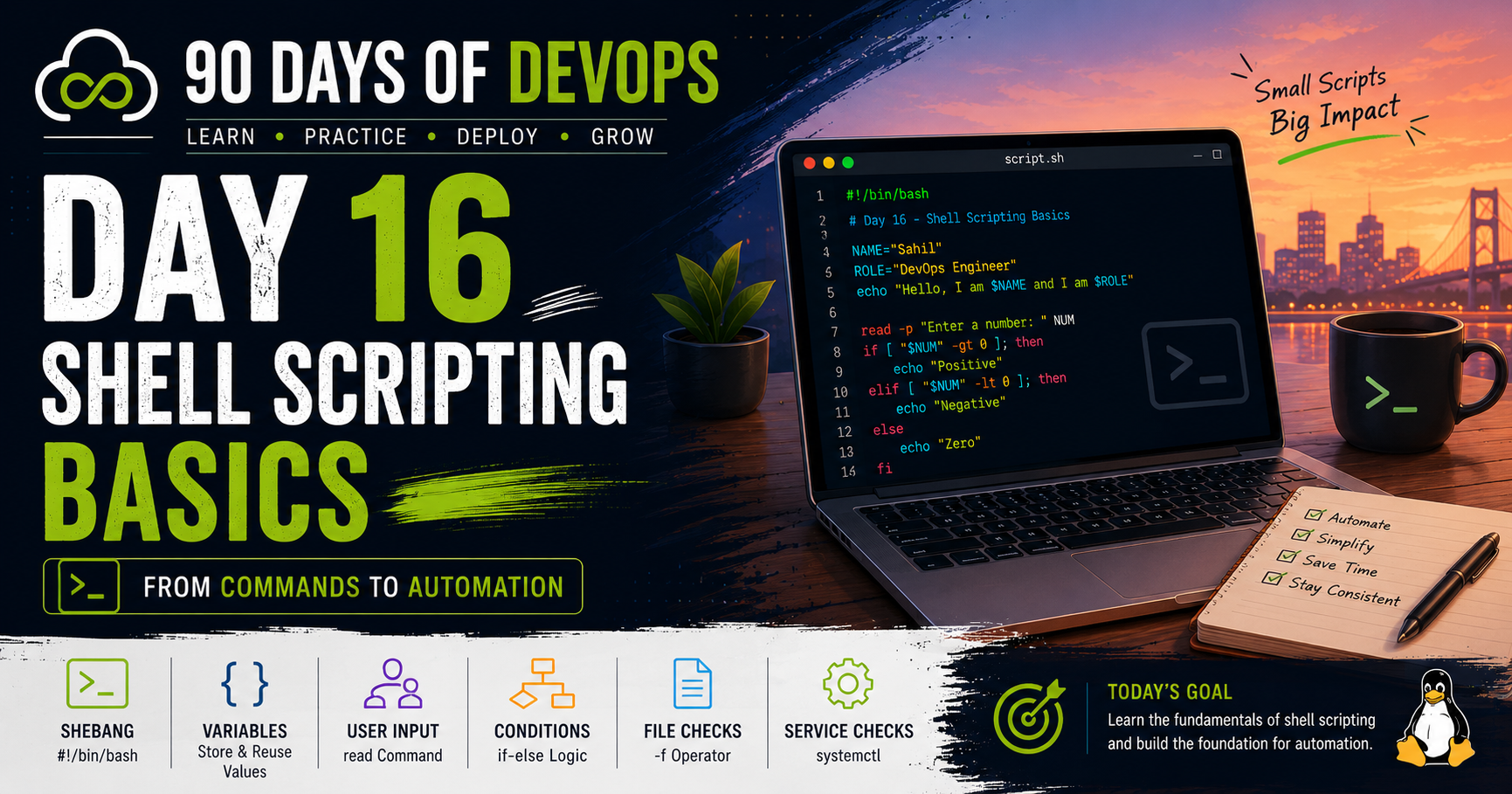
The goal of today's challenge was to understand the fundamental building blocks of Bash scripting:
Shebang (
#!/bin/bash)Variables
User Input
Echo Statements
Conditional Logic (
if-else)
These concepts form the foundation for automation, deployment scripts, monitoring tools, and many DevOps workflows.
What is Shell Scripting?
A shell script is a text file containing Linux commands that are executed sequentially by a shell interpreter.
Instead of typing the same commands repeatedly, we can write them once in a script and execute them whenever needed.
Benefits of shell scripting:
Automation
Faster administration
Reduced manual effort
Consistent execution
Easier troubleshooting
Task 1 – My First Shell Script
I created my first Bash script called hello.sh.
hello.sh
#!/bin/bash

echo "Hello, DevOps!"
Made the script executable:
chmod u+x hello.sh
Executed it:
./hello.sh
Output:
Hello, DevOps!
This simple script demonstrated how Bash executes commands from a file.
Understanding the Shebang
The first line of the script:
#!/bin/bash
is called the Shebang.
Its purpose is to tell Linux which interpreter should execute the script.
Without a shebang, the system may attempt to use a different shell, which can lead to inconsistent behavior.
Most Bash scripts begin with this line.
Task 2 – Working with Variables
Variables allow values to be stored and reused throughout a script.
variables.sh
#!/bin/bash

NAME="Sahil"
ROLE="DevOps Engineer"

echo "Hello, I am \(NAME and I am \)ROLE"
Execution:
./variables.sh
Output:
Hello, I am Sahil and I am DevOps Engineer
Single Quotes vs Double Quotes
I also explored how Bash handles quotes.
Single Quotes
echo '$NAME'
Output:
$NAME
Bash treats the variable as plain text.
Double Quotes
echo "$NAME"
Output:
Sahil
Bash expands the variable and displays its value.
This distinction is important when writing scripts that rely on variables.
Task 3 – User Input Using read
The read command allows scripts to accept input from users.
greet.sh
#!/bin/bash

read -p "Enter your name: " NAME

echo "Welcome $NAME to our company!"
Execution:
./greet.sh
Example Output:
Enter your name: Sahil

Welcome Sahil to our company!
Why User Input Matters
Interactive scripts can adapt based on user responses.
Instead of hardcoding values, scripts become dynamic and reusable.
This capability is frequently used in deployment and administration scripts.
Task 4 – Conditional Statements
Conditional statements allow scripts to make decisions.
check_number.sh
#!/bin/bash

read -p "Enter a number: " NUM

if [ "$NUM" -gt 0 ]; then
    echo "Positive"

elif [ "$NUM" -lt 0 ]; then
    echo "Negative"

else
    echo "Zero"
fi
Example:
Input:
5
Output:
Positive
This script demonstrates how Bash can evaluate conditions and perform different actions based on user input.
Task 5 – File Existence Check
Checking whether a file exists is a common administrative task.
file_check.sh
#!/bin/bash

read -p "Enter File Name: " FILE

if [ -f "$FILE" ]; then
    echo "File Exists"
else
    echo "File Does Not Exist"
fi
Execution:
./file_check.sh
Example:
Enter File Name: hello.sh
Output:
File Exists
This introduced me to the -f operator used for file verification.
Task 6 – Service Status Check
The final challenge combined variables, user input, conditions, and Linux administration commands.
server_check.sh
#!/bin/bash

SERVICE="nginx"

read -p "Do you want to check the status? (y/n): " CHOICE

if [ "$CHOICE" = "y" ]; then

    if systemctl is-active --quiet $SERVICE; then
        echo "$SERVICE is active."
    else
        echo "$SERVICE is not active."
    fi

else
    echo "Skipped."
fi
This script demonstrates how Bash can interact with system services and make decisions based on their state.
Such scripts are commonly used for monitoring and automation.
Commands Practiced
vim hello.sh
chmod u+x hello.sh
./hello.sh

vim variables.sh
chmod +x variables.sh
./variables.sh

vim greet.sh
chmod u+x greet.sh
./greet.sh

vim check_number.sh
chmod u+x check_number.sh
./check_number.sh

vim file_check.sh
chmod u+x file_check.sh
./file_check.sh

vim server_check.sh
chmod u+x server_check.sh
./server_check.sh
What I Learned
1. The Shebang Defines the Interpreter
Every Bash script typically begins with:
#!/bin/bash
This ensures the script is executed using Bash.
2. Variables Make Scripts Flexible
Variables allow scripts to store and reuse values.
Example:
NAME="Sahil"
This makes scripts easier to modify and maintain.
3. Conditional Logic Enables Automation
Using if-else statements allows scripts to make decisions automatically.
This is a core concept used in DevOps automation.
Why Shell Scripting Matters in DevOps
Shell scripting is widely used for:
Server administration
Deployment automation
Monitoring
Backup tasks
Log management
Infrastructure provisioning
CI/CD pipelines
Many DevOps tools rely on Bash scripts behind the scenes.
Learning shell scripting is one of the first steps toward building real automation skills.
Key Takeaways
Shell scripts automate repetitive Linux tasks.
Shebang tells Linux which interpreter to use.
Variables store reusable data.
readenables user interaction.if-elseadds decision-making capability.Scripts can interact with files and services.
Shell scripting is a fundamental DevOps skill.
Final Thoughts
Today's challenge introduced me to the fundamentals of Bash scripting and automation.
I created multiple scripts, worked with variables and user input, implemented conditional logic, and built scripts capable of interacting with files and services.
While the scripts were simple, they demonstrated the core concepts behind automation and provided a strong foundation for more advanced scripting in the future.
The ability to automate repetitive tasks is one of the most valuable skills in DevOps, and today's exercises were an important step in that direction.
Day 16 completed.
Still learning. Still improving. Still building.


