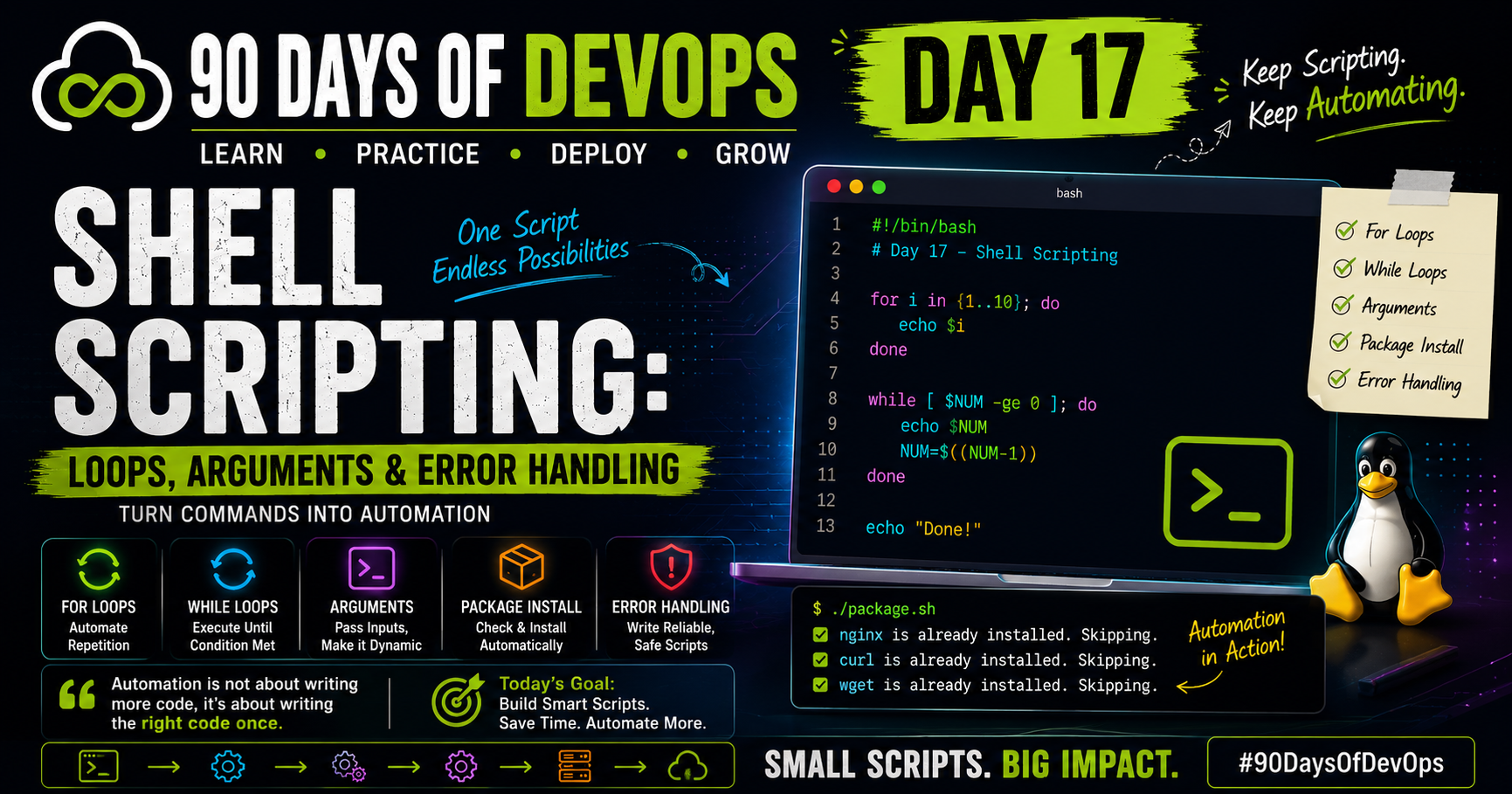
Day 17 of #90DaysOfDevOps – Shell Scripting: Loops, Arguments & Error Handling
Introduction
After learning the basics of shell scripting on Day 16, today's focus was on making scripts more powerful and practical.
Writing a script that prints a simple message is useful for understanding syntax, but real automation requires more than that. Most DevOps tasks involve repeating actions, accepting inputs, installing software, and handling unexpected situations gracefully.
Today's learning covered three important Bash scripting concepts:
Loops (
forandwhile)Command-line arguments
Error handling
These concepts are widely used in automation, deployment scripts, monitoring tools, CI/CD pipelines, and server administration.
Why Shell Scripting Matters in DevOps
As infrastructure grows, manually performing tasks becomes inefficient.
Imagine:
Installing packages on multiple servers
Checking hundreds of files
Monitoring services
Processing logs
Running commands one by one doesn't scale.
Shell scripting allows us to automate repetitive tasks and create reusable workflows.
Today's exercises showed how a few lines of Bash can save a significant amount of manual work.
Task 1 – Working with For Loops
A for loop allows us to execute a block of code repeatedly for each item in a list.
Example 1: Printing Fruits
I created a script that loops through an array of fruits and prints them one by one.
for_loop.sh
#!/bin/bash

fruits=("Apple" "Pineapple" "Banana" "Mango" "Orange" "Grapes" "Watermelon" "Kivi")

for i in ${!fruits[@]}; do
    echo "Fruit \(((i+1)) is \){fruits[i]}"
done
Output
Fruit 1 is Apple
Fruit 2 is Pineapple
Fruit 3 is Banana
Fruit 4 is Mango
Fruit 5 is Orange
Fruit 6 is Grapes
Fruit 7 is Watermelon
Fruit 8 is Kivi
This demonstrated how Bash arrays work and how loops can process multiple values automatically.
Example 2: Counting Numbers
I also created a script to print numbers from 1 to 10.
count.sh
#!/bin/bash

for i in {1..10}; do
    echo "$i"
done
Output
1
2
3
4
5
6
7
8
9
10
This is a simple example, but similar loops are commonly used in automation scripts for processing files, servers, and resources.
Task 2 – Using While Loops
Unlike a for loop, a while loop continues running until a condition becomes false.
To understand this concept, I built a countdown timer.
countdown.sh
#!/bin/bash

read -p "Enter a number: " NUM

while [ "$NUM" -ge 0 ]; do
    echo "$NUM"
    NUM=$((NUM-1))
done

echo "Done !"
Output
Enter a number: 10

10
9
8
7
6
5
4
3
2
1
0

Done !
This helped me understand how loops can continuously execute logic based on changing conditions.
Task 3 – Command-Line Arguments
One of the most useful scripting features is the ability to pass information directly when executing a script.
Instead of editing the script every time, values can be supplied dynamically.
Greeting Script
greet.sh
#!/bin/bash

echo "Hello, $1"
Execution
./greet.sh Ram
Output
Hello, Ram
The variable $1 represents the first argument passed to the script.
This makes scripts much more flexible.
Understanding Bash Argument Variables
Bash provides several built-in variables:
| Variable | Description |
|---|---|
$1 |
First argument |
$2 |
Second argument |
$# |
Total number of arguments |
$@ |
All arguments |
$0 |
Script name |
To explore these, I created another script.
args_demo.sh
#!/bin/bash

echo "Total number of arguments: $#"

echo "All arguments: $@"

echo "Script name: $0"
Execution
./args_demo.sh hello hi how are you
Output
Total number of arguments: 5
All arguments: hello hi how are you
Script name: ./args_demo.sh
These variables are heavily used in automation scripts because they allow the same script to work with different inputs.
Task 4 – Automating Package Installation
This was one of the most practical tasks of the day.
Instead of checking packages manually, I created a script that verifies whether required packages are installed and installs them if necessary.
package.sh
#!/bin/bash

packages=("nginx" "curl" "wget")

apt update

for pkg in "${packages[@]}"
do
    if dpkg -s "$pkg" >/dev/null 2>&1
    then
        echo "$pkg is already installed. Skipping."
    else
        echo "$pkg is not installed. Installing..."
        apt install -y "$pkg"
    fi
done
Output
nginx is already installed. Skipping.
curl is already installed. Skipping.
wget is already installed. Skipping.
This script demonstrates a real DevOps use case:
Verify software
Install missing dependencies
Avoid unnecessary work
Such automation is frequently used during server provisioning.
Task 5 – Error Handling
Scripts should not assume everything will always work perfectly.
Files may already exist. Directories may be missing. Commands may fail.
Good scripts anticipate these situations.
Safe Script
safe_script.sh
#!/bin/bash

set -e

mkdir /tmp/devops-test || echo "Failed to create directory"

cd /tmp/devops-test || echo "Failed to enter directory"

touch test.txt || echo "Failed to create file"

echo "Script completed successfully"
First Execution
Script completed successfully
Second Execution
mkdir: /tmp/devops-test: File exists
Failed to create directory
Script completed successfully
The script handled the error gracefully and continued execution.
This introduced me to:
set -e
and
||
which are commonly used for error handling in Bash.
Real-World DevOps Applications
The concepts learned today are used everywhere in DevOps:
Loops
Used for:
Processing multiple servers
Deploying applications
Managing files
Automating repetitive tasks
Arguments
Used for:
Passing environment names
Specifying server addresses
Providing deployment versions
Creating reusable scripts
Error Handling
Used for:
Preventing failed deployments
Detecting configuration issues
Improving script reliability
Ensuring predictable automation
Key Learnings
1. Loops Eliminate Repetition
Instead of writing the same commands multiple times, loops automate repetitive actions efficiently.
2. Arguments Make Scripts Flexible
Using variables such as:
$1
$#
$@
$0
allows scripts to accept dynamic input.
3. Error Handling Improves Reliability
Using:
set -e
and logical operators helps scripts handle failures safely.
Final Thoughts
Day 17 felt like a major step forward in my shell scripting journey.
For the first time, I wrote scripts that:
Process data using loops
Accept user-provided inputs
Automate package management
Handle errors gracefully
These are the same concepts used in real-world automation and DevOps workflows.
The more I learn Bash scripting, the more I understand how automation reduces manual effort and improves efficiency.
This is the foundation that will eventually lead to CI/CD pipelines, infrastructure automation, and advanced DevOps tooling.
Day 17 completed.
Still learning. Still improving. Still building.


